Guides
Securing a Small Office After the Move: Router, Guest Wi-Fi and MFA
In the first week at a new office, change the router's default passwords, update its firmware, set strong Wi-Fi encryption, put visitors on guest Wi-Fi, close or limit anything exposed to the internet you don't need, and switch on multi-factor authentication for email, banking, cloud storage and accounting.
The router advice in the Australian Cyber Security Centre's small business handbook sits in two chapters, not one. Put the two lists together and our count is seven router settings to check in your first week at the new office.
The working: the handbook's Protecting devices, systems and networks chapter says to change default passwords, use strong encryption, keep firmware updated and enable guest Wi-Fi for visitors and customers. Its Remote working security chapter, written with home set-ups in mind, splits the passwords into the Wi-Fi name and password plus the router's own username and password, and adds two more: disable remote management and disable Universal Plug and Play. That makes seven, and we'd treat the longer list as the one for the office router too.
Do those seven, then switch on multi-factor authentication (MFA), which the handbook calls one of the most effective ways to protect business accounts. That's the first-week job once the new router is plugged in and staff are logging in from a new address.
Getting connected in the first place, and keeping your backups and data intact through the move, is covered in our office relocation IT checklist. This guide picks up after that: securing what you've just switched on.
Router security: the seven settings to check in the new office
Router settings to tick off
Our count across two ACSC handbook chapters.
A new router, or an old one reset for the new line, often starts on its factory settings. Work through these:
- Change the router's default username and password.
- Change the default Wi-Fi name and password.
- Use the strongest Wi-Fi encryption available (WPA2 or WPA3).
- Keep firmware updated.
- Disable remote management.
- Disable Universal Plug and Play.
- Turn on guest Wi-Fi for visitors and customers.
If your internet provider or an IT provider set the router up for you, ask them which of these are already done. The handbook itself suggests discussing network security set-up with an IT professional.
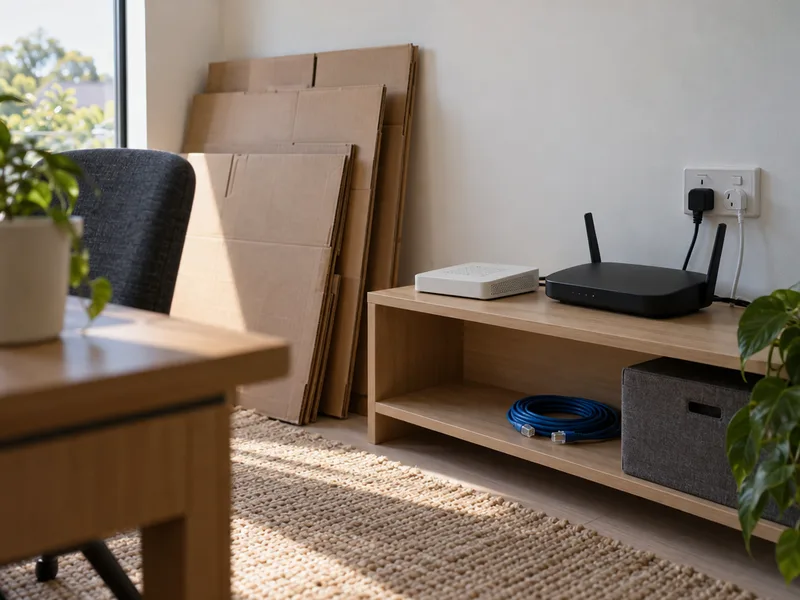
Guest Wi-Fi: keeping visitors off the staff network
Source: Australian Cyber Security Centre
A new office means new visitors: clients in the meeting room, a tradie finishing the fit-out, a courier waiting on a signature. None of them needs the network your files live on.
The handbook says to enable guest Wi-Fi for visitors and customers. Its remote working chapter goes a step further and suggests segmenting the network by purpose or device, with smart devices on a separate network from the main one as its example.
Think of it as three lanes off one router: staff and shared storage in one, visitors in another, gadgets in a third.
What is exposed to the internet after the move?
| What to look for | What the handbook says to do |
|---|---|
| Remote Desktop, file sharing, remote administration tools | Review; limit access; secure or disable what isn't needed. |
| Router remote management and Universal Plug and Play | Disable. |
| Servers and network attached storage | Keep updated; administrator accounts get a strong password and MFA. |
| Cloud services | Enable MFA; review administrator access regularly; remove unused accounts and third-party integrations. |
Moves shuffle things. A setting someone switched on at the old office so they could reach a file from home can travel straight across with the equipment.
The handbook says to review anything exposed to the internet, such as Remote Desktop, file sharing or remote administration tools, limit access, and secure or disable what isn't needed.
If you run a server or network attached storage, it deserves a look now. The handbook calls these common targets: keep them updated and protect administrator accounts with a strong password and MFA.
A move is also a fair moment to ask whether the box in the corner needs to come at all. The same chapter notes that for many small businesses, reputable cloud services provide stronger security than self-hosted systems. Go that way and the handbook's advice carries over: enable MFA, review administrator access regularly, and remove unused accounts or third-party integrations.
MFA for small business: which accounts to start with
High-risk accounts to switch MFA on first
May be called two-factor authentication or two-step verification, usually under account security.
The handbook explains the point of MFA plainly: a stolen password alone can't be used to get in.
Start with the high-risk accounts: email, banking, cloud storage, accounting software and social media. Look under account security for "two-factor authentication" or "two-step verification"; it's the same thing under another name.
| MFA method | Handbook note |
|---|---|
| Passkey | Listed |
| Physical token | Listed |
| Security key | Listed |
| Biometrics | Listed |
| Authenticator app | Listed |
| SMS or email code | Least secure option, because SMS and email accounts are easy to compromise. |
You'll be offered a choice of methods: passkey, physical token, security key, biometrics, authenticator app, or a code by SMS or email. The handbook calls SMS or email codes the least secure option, because those accounts are easy to compromise. Pick something else where the account allows it.
Where an account can't use MFA at all, the handbook sets passwords of at least 15 characters, unique to each account, stored in a password manager that is itself protected by a strong master password plus MFA. That beats a sticky note of logins packed in a box marked "office misc".
Shared logins left over from the move
| Shared account | Who has access | Needs admin access? | Login details last changed | Anyone left or changed role since? |
|---|---|---|---|---|
Moves breed shared logins. One account gets passed around so whoever is on site can sort the printer, the alarm or the new internet account.
An old or "temporary" shared login isn't harmless once the move is over: the handbook says shared accounts raise risk and make activity harder to track, so login details should change when staff leave or change roles.
The fix is a short admin job. Create individual staff accounts where you can, keep a record of shared accounts and who has access, and give administrator access only to those who need it.
How should files travel between the old office and the new one?
The tempting answer is a USB stick in someone's pocket. The handbook advises avoiding USB drives for moving files because they're easy to lose, steal or infect. Use reputable cloud storage, or, if a drive is unavoidable, encrypt it with a strong password.
The week of a move also puts people on unfamiliar networks: the café near the new site, a hotspot at the old one. The handbook's advice is to avoid public Wi-Fi for work, and if you must use it, avoid logging into accounts or making payments.
Old laptops, phones and drives from the old office
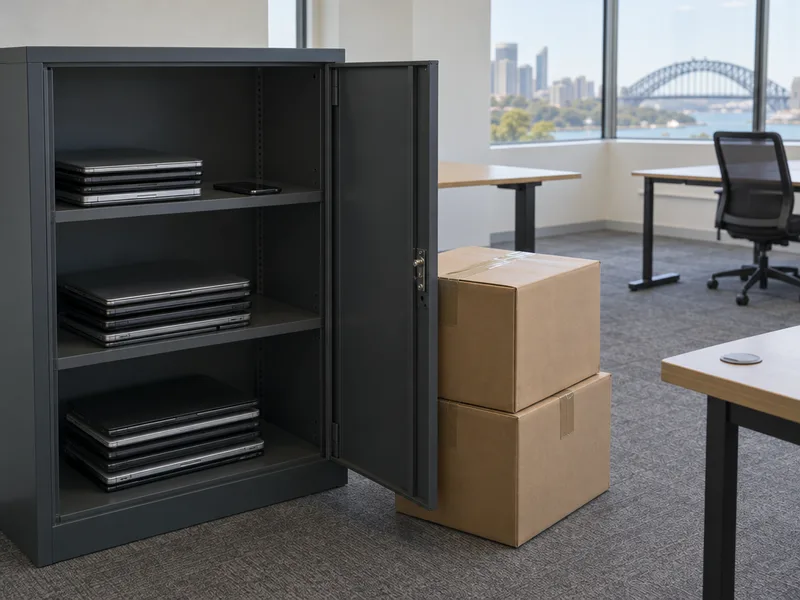
Not everything makes the trip. Before you sell, trade or throw out a business device, the handbook says to remove all information, for example with a factory reset. For particularly sensitive information, consider a data destruction service or an IT professional.
Devices that are coming with you spend moving day packed, stacked and away from their usual desk. The handbook's minimum is to use a password or biometric and set automatic lock after a short period of inactivity. Set it before the laptops go into the cartons, not after they come out.
Buying new cameras or smart devices for the new office?
New premises often mean new gear: a door camera, a smart lock, a few connected gadgets for the meeting room.
The ACSC's personal cyber security handbook notes that the Cyber Security (Security Standards for Smart Devices) Rules 2025 commenced on 4 March 2026, and says they require no default passwords, a clear way to report security issues and a defined period for security updates.
Those three points make a sensible shopping question for any smart device you're buying. Once it arrives, it belongs on its own network, not the staff one.
Your first week in the new office, in order
- Router admin password and firmwareSource: Protecting devices, systems and networks; Remote working security
- Wi-Fi name, password and encryption (WPA2 or WPA3)Source: Remote working security; Protecting devices, systems and networks; Secure your devices (personal handbook)
- Guest Wi-Fi for visitors and customers, plus remote management and Universal Plug and Play offSource: Protecting devices, systems and networks; Remote working security
- Review Remote Desktop, file sharing and remote admin tools: limit, secure or disableSource: Protecting devices, systems and networks; Remote working security
- MFA on email, banking, cloud storage, accounting, social mediaSource: Securing accounts and identities
- Shared-account record updated, logins changed for anyone who has left or changed roleSource: Securing accounts and identities
- Devices locked with auto-lock after a short period of inactivitySource: Protecting devices, systems and networks; Secure your devices (personal handbook)
Source: Australian Cyber Security Centre
Here is the order we'd work in, so the jobs that touch everything come first:
- Router admin password and firmware.
- Wi-Fi name, password and encryption.
- Guest Wi-Fi for visitors and customers, with remote management and Universal Plug and Play switched off.
- A review of Remote Desktop, file sharing and remote admin tools: limit, secure or disable.
- MFA on email, banking, cloud storage, accounting and social media.
- The shared-account record updated, and logins changed for anyone who has left or changed role.
- Every device locked, with auto-lock set.
All of it comes from the ACSC handbook chapters published and last reviewed on 7 October 2026, so it's current guidance rather than last year's.
Still planning the move itself?
If the new office is still ahead of you, Castle Hill Removals' advice is to put this list next to your moving plan now, so the router settings and the logins get a slot in the first week rather than whenever someone remembers. Our office move checklist for Hills District businesses covers who to tell and what to update.
When you're ready to book the move, ask Castle Hill Removals for a quote through our quote page.
Sources
- Australian Cyber Security Centre, Small Business Cyber Security Handbook: Protecting devices, systems and networks. https://www.cyber.gov.au/publication/small-business-cyber-security-handbook/protecting-devices-systems-and-networks
- Australian Cyber Security Centre, Small Business Cyber Security Handbook: Remote working security. https://www.cyber.gov.au/publication/small-business-cyber-security-handbook/remote-working-security
- Australian Cyber Security Centre, Small Business Cyber Security Handbook: Securing accounts and identities. https://www.cyber.gov.au/publication/small-business-cyber-security-handbook/securing-accounts-and-identities
- Australian Cyber Security Centre, Personal Cyber Security Handbook: Secure your devices. https://www.cyber.gov.au/publication/personal-cyber-security-handbook/secure-your-devices
- Pictures in this guide are illustrations, not photos of our jobs.
Ready for the walk-through?
Tell us about the house, the garage and the dates. We come back with the right crew, the real hourly rate and how the day runs. No phone tag, no obligation, and nothing is booked until you say so.